Sending an email broadcast
Last updated:
What a broadcast is
An email broadcast is one email sent to everyone on a mailing list, such as a newsletter, an event invitation or a product announcement. Chorum tracks who received it, who opened it and who clicked a link, and records each of those against the contact.
For a series of emails that go out automatically over time, use a drip sequence instead. See Marketing automations and drip sequences.
Before you start
- You have at least one sender set up. See Sender domains and email deliverability.
- You have a mailing list to send to. See Mailing lists and subscribers.
- Create a small test list that only contains your own and your colleagues' addresses. You will send to it first.
Create the broadcast
- Go to Marketing, Email, Broadcasts and create a new broadcast (or choose Send an email broadcast on the Marketing Overview), then pick Email broadcast.
- Campaign name: an internal name, such as "Spring newsletter". Recipients never see it.
- Subject line: what recipients see in their inbox. Keep it short and specific; a few words work better than a sentence.
- Mailing list: choose your test list for now.
- Send from: leave this on your default sender unless this email should come from a different address.
- Write the Email body (see below), then choose Save as draft.
Write the email
The email body has two modes. Switch between them with the buttons above the editor.
- Blocks: drag ready-made sections from the palette: Header, Text, Image, Button, Divider, Spacer, 2 Columns, Social Links and Products (live items from a connected WooCommerce or Shopify store). Each block is built to display well in email apps and on phones. This is the easiest way to get a professional layout.
- Rich text: a simple word processor style editor for plain, letter-style emails.
Personalise the email with merge fields: {{name}} inserts the subscriber's name and {{email}} their email address. For example, "Hi {{name}}," at the top of the email.
You can also start from a saved design. See Marketing email templates.
Let AI help
Once the broadcast is saved, open it and choose Edit to use the AI helpers:
- AI suggest (next to the subject line) offers subject line ideas based on your campaign name and email content. The field also counts characters; aim for under 70 so the subject is not cut off.
- AI draft (next to the email body) opens AI email draft. Write a short brief, for example "Invite existing customers to our free security webinar on 12 March, three key topics, friendly tone", and Claude writes the email for you to edit.
The AI follows your brand kit, so set that up first. See Setting up your brand kit. Always read and edit AI drafts before sending.
Test, then send
The simplest way to test is to build the design once as a template, then use it twice: once for your test list and once for your real list.
- Build the email at Marketing, Email, Templates. See Marketing email templates.
- On the template, choose Use template. A new broadcast opens with the subject and body filled in. Pick your test list, save it, open it and choose Send now.
- Open the test email on a desktop and a phone. Check the layout, the images, every link and the personalisation. If anything needs fixing, edit the template and send another test.
- When it is right, choose Use template again, pick your real mailing list, save, check the summary and choose Send now. You will be asked to confirm how many recipients it is going to.
You can edit a broadcast while it is a draft or scheduled. Once it has been sent, it cannot be changed.
See how it did
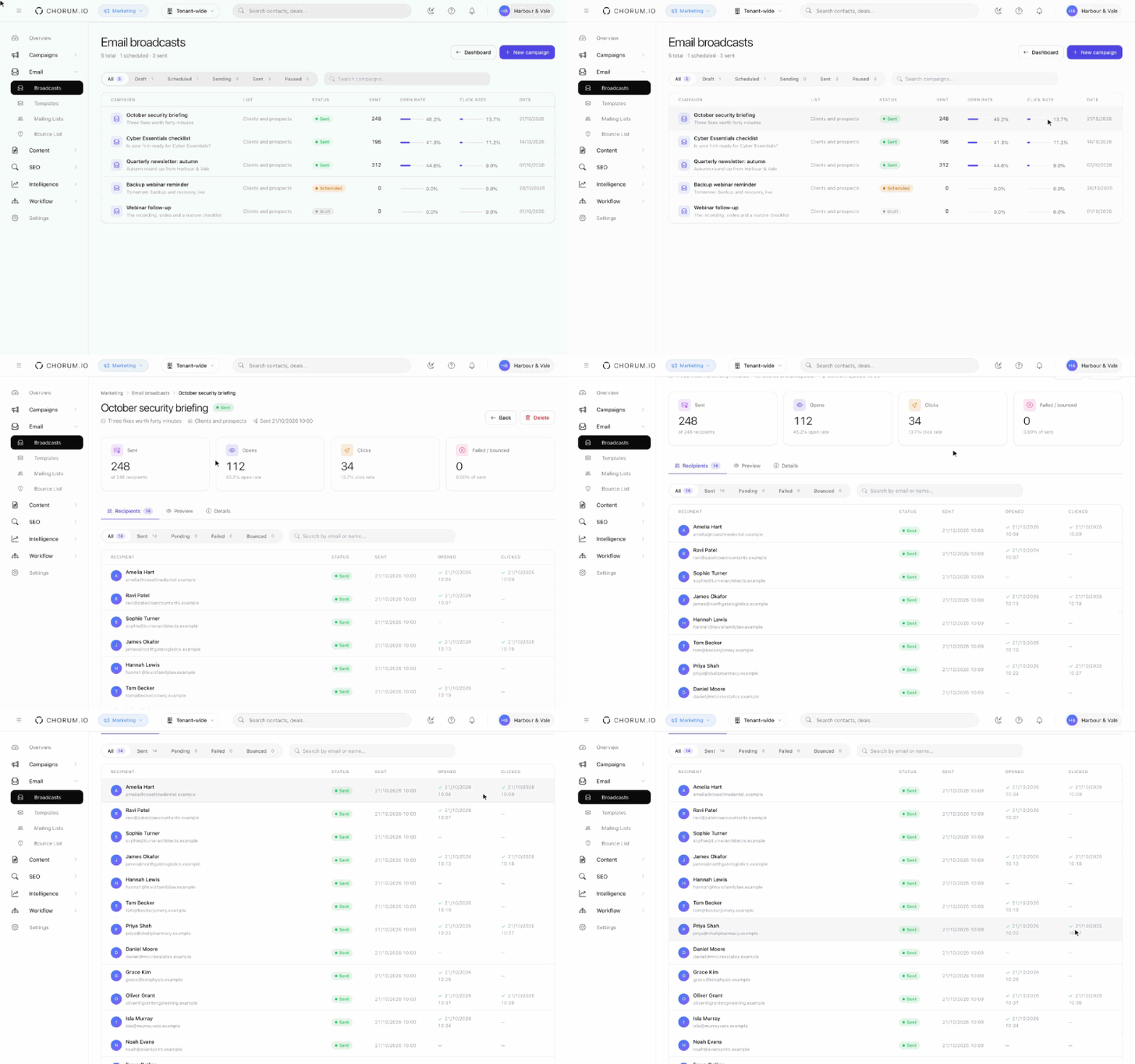
The Broadcasts list shows the open rate and click rate of every sent broadcast. Open a sent broadcast to see:
- Sent, Opens, Clicks and Failed / bounced totals, with open and click rates.
- A recipient list you can search by email or name, showing when each person was sent the email, opened it and clicked.
Coming in the January 2027 update: opens and clicks are recorded automatically for every broadcast. Each email gets a small tracking image and tracked links, each person counts once, and a click also counts as an open when their email app blocks images. Unsubscribe and email address links are never changed. Until your workspace has this update, the Opens and Clicks totals may stay at 0. Only emails sent after the update are tracked.
Open tracking relies on images loading, and some email apps block them or open emails automatically (Apple Mail does this for privacy), so treat open rates as a guide. Clicks are a more reliable measure of interest.
Tips for better results
- One email, one goal. Give readers a single clear button to press.
- Put the most important line near the top; many people only read the first few lines.
- Use real text rather than putting your message inside an image, so it reads well when images are blocked.
- Group a broadcast with related social posts and a landing page in a campaign to see combined results. See Running a campaign.